Opening the addon
Use /trackme or /tm to open the addon. Stay on Home first, because it already combines the most important systems instead of sending you through every tab one by one.
What to look at first
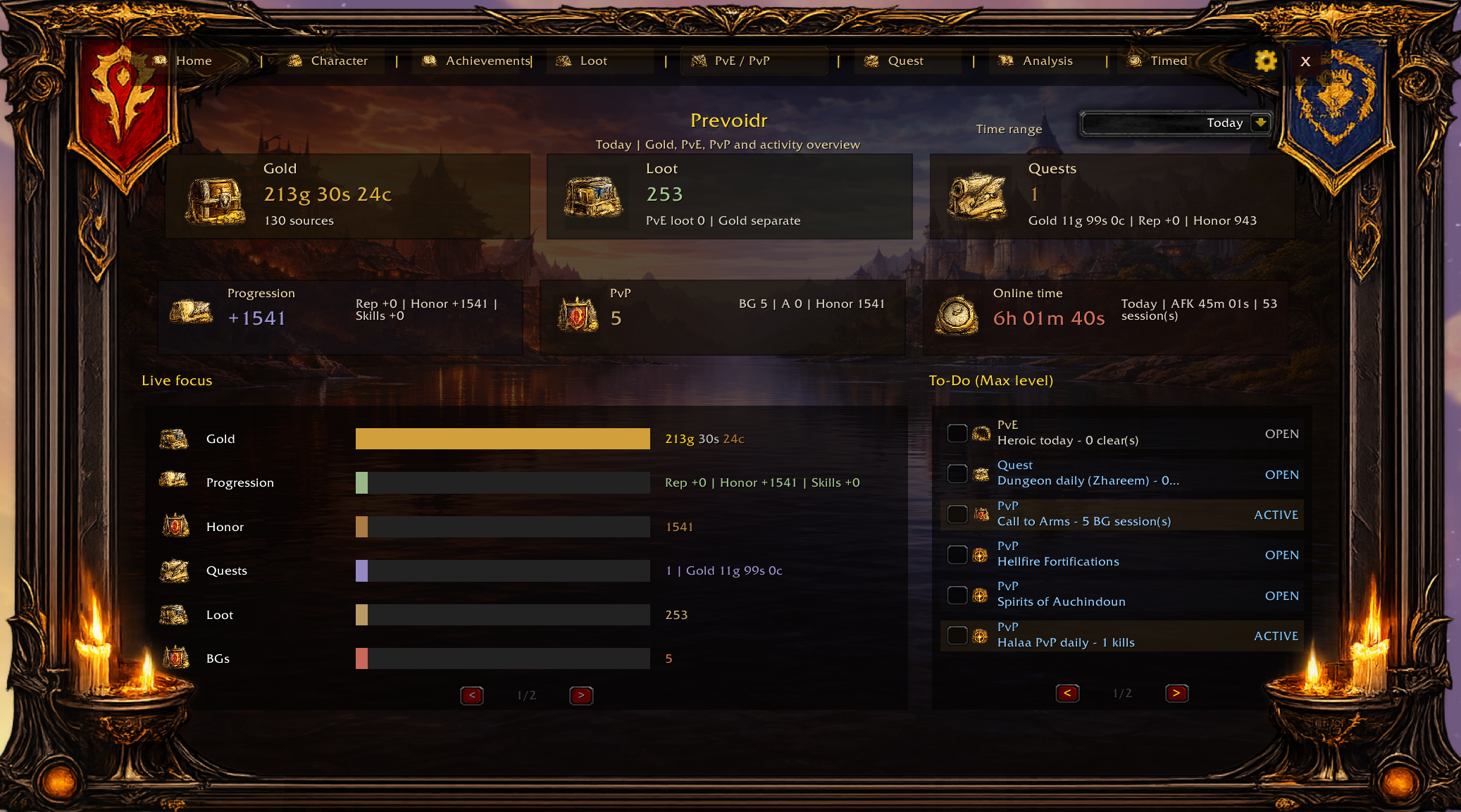
- The top navigation bar to see the major areas: Home, Character, Achievements, Loot, PvE/PvP, Quest, Analysis and Timed.
- The active time-range filter, because many numbers change with the selected window.
- The overview blocks for gold, loot, quests, progression, PvP and online time.
- The live-focus section and todo panel, which are often the fastest way to understand what TrackMe thinks mattered most in the selected time frame.
Best first-use workflow
- Open the addon and stay on Home.
- Switch between time ranges such as today and yesterday to see how the same layout changes.
- Open the todo block and compare it to what you actually played.
- Then move to Loot, PvE/PvP or Analysis depending on whether your interest is items, combat or value.
How to avoid misreading the addon
A number on Home is not automatically a lifetime total. It may change with the selected time range, character view and activity context.
Check the time range first, then the tab, then the context behind the value.